
How to use the phone as a microphone on PC?
If you are online and don't have a microphone to use in various applications, then you can use your smartphone as a microphone on your computer, on Windows. Basic requirements:…
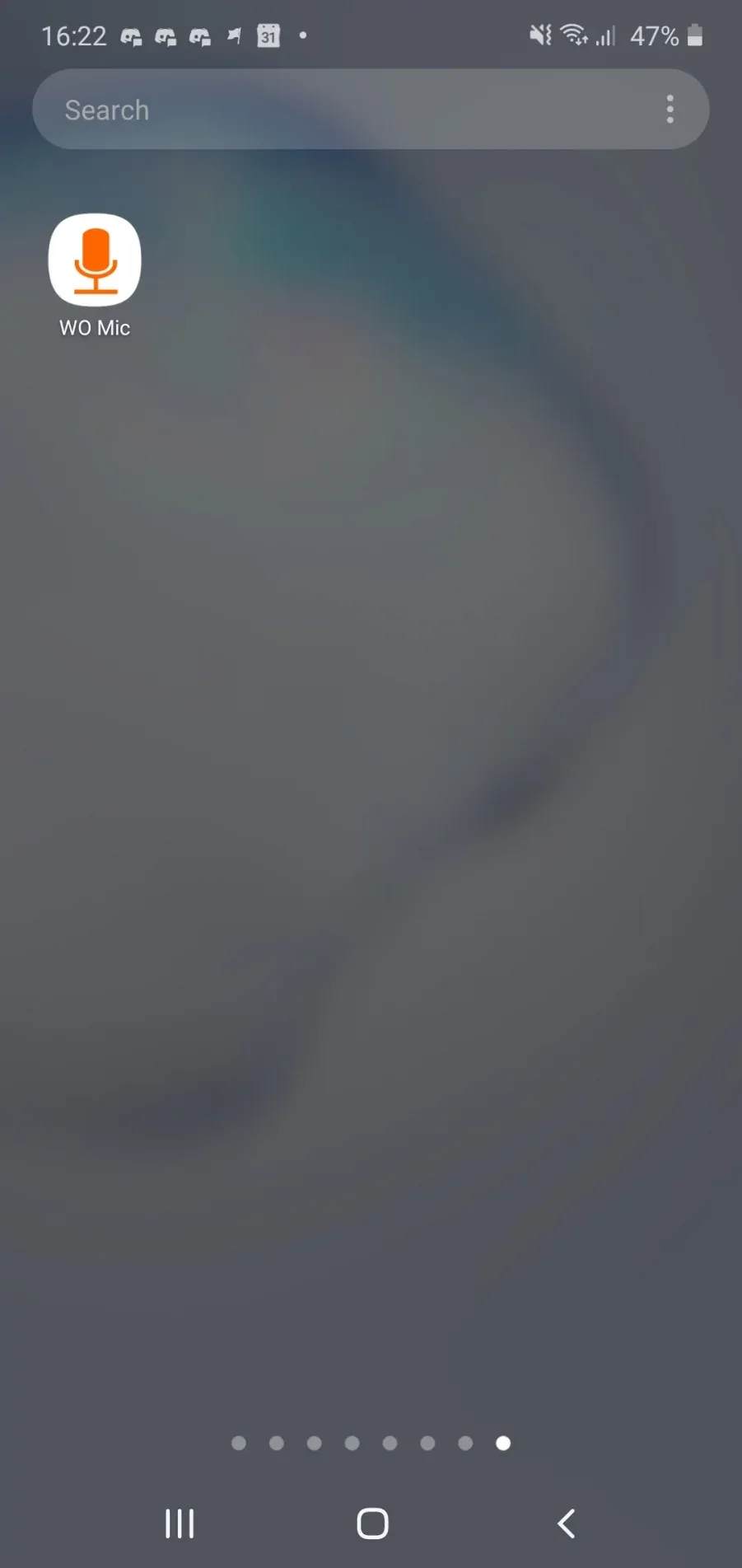
If you are online and don't have a microphone to use in various applications, then you can use your smartphone as a microphone on your computer, on Windows. Basic requirements: WO Mic app for phone (Android or iOS) WO Mic app for computer
STEP 1 – Download the Wo Mic app (https://play.google.com/store/apps/details?id=com.wo.voice2) from Play Store. And open the app
STEP 2 – Click SETTINGS in the app
STEP 3 – Click on the Transport option and choose Wi-Fi
STEP 4 – Choose Wi-Fi
STEP 5 – Go back to the beginning and click the play icon
STEP 6 – Click Allow if prompted!
STEP 7 – Now the phone's IP address appears, which you need to connect in the app. Continue with installing the program on your PC.
STEP 1 – Download the Wo Mic app (https://apps.apple.com/us/app/megaphone-free/id304955183) from App Store and open the app
STEP 2 – When you open the app, click Start
STEP 3 – Now the phone's IP address appears, which you need to connect in the app. Please continue with installing the program on your PC.
First download the app from this link: https://wolicheng.com/womic/softwares/wo_mic_client_setup.exe Open the file and follow the steps:
STEP 1 – Select English or any other language that suits you and click OK
STEP 2 – Click Next
STEP 3 – Click Next
STEP 4 – Click Next
STEP 5 – Click Finish.
STEP 6 – Now you also need to install the Windows driver for this microphone from the link below: https://wolicheng.com/womic/softwares/womic_driver_setup.exe Open the downloaded file and follow the steps below:
STEP 7 – Please choose your operating system. If you are not sure whether your computer is x86 or x64, then try x64, if it doesn't work, try again with x86. And click Install
Step 8 – After the installation finishes, please restart your computer (important). When the computer starts, open the WO Mic program now, which is on your desktop.
Step 9 – Click on Connection and then on Connect
Step 10 – Choose Transport type WI-FI as in the photo, and type the same IP Address as shown on your phone (see the steps above for your phone). And finally click Connect
Step 11 – As soon as it shows Connected, you should be fine now. Please test if everything is okay through any online call with an app, or a voice recorder on Windows.
STEP 1 – Press the Windows + I key to open Settings STEP 2 – Go to System then Sound STEP 3 – Select Microphone (WO Mic Device) in the list under Choose your input device STEP 4 – Speak now into your phone and watch the sound volume on the Test your microphone bar.